
I denne artikel vil jeg gennemgå hovedprincipperne bag hvordan Google fungerer som søgemaskine. Det er en gennemgang baseret på hvad Google selv har sagt, gennem Google Inside Search. Læs videre “Sådan virker Google”
Eovendo – tjen penge på at se reklamer

I denne artikel vil jeg bare lige præsentere jer for tjenesten Eovendo, og give en kort anmeldelse af tjenesten. Hvis i ikke allerede har opdaget tjenesten, er det en tjeneste hvor du kan tjene penge på at se reklamer. Dette foregår ved at du downloader et lille program til computeren, som kan køre i baggrunden. Det giver dig så besked, hver gang der dukker en ny reklame op. Læs videre “Eovendo – tjen penge på at se reklamer”
Problemer med Magic Quotes i Joomla 3

Jeg har fået en del henvendelser vedr. fejl med Magic Quotes, dels i forbindelse med installationen af Joomla 3 og problemer med indsættelse af billeder og links (og andre HTML-tags) i artikler, efter jeg skrev en artikel om problemer med Magic Quotes i Joomla 3 på min engelske blog Webmaster-land.com. Derfor tænkte jeg at jeg også lige ville dele løsningen med jer, her på min danske blog. Læs videre “Problemer med Magic Quotes i Joomla 3”
Build good Nofollow links
Nofollow links are links, which instructs Google not to pass on Google Pagerank to the destination address. Can you use these Nofollow links in your linkbuilding strategy or should you avoid them? I will point some of the answers out in this article.
When you are building Nofollow links, you must distinguish between good and bad Nofollow links. Bad Nofollow links are links, which are easy builded (usually with a linkbuilding software) and does not lead to more visitors. Good Nofollow links are links that are Nofollow, but will lead to more visitors. That may be links on Facebook or Youtube, which are Nofollow.
You can see in this screenshot, that shows a Facebook page and Nofollow links marked with a red square, that Facebook posts are usually NoFollow.
 ‘
‘
You can see that both the link that is written in the text and the primary link of the post is marked with a red square, indicating that both are Nofollow links. However, these are good Nofollow links. Because even though they don’t pass on Pagerank, they will still lead to a lot of visitors, because it is on a very popular social network.
Another good Nofollow link is a Google+ post. However, this differs from Facebook posts, that the primary link is actually a follow link. Therefore, when you make a Google+ post with a link, always prefer using the primary link, and not just include it in the post.

Should I build links on blog comments?
Links on blog comments are usually also Nofollow and very easy to get. Often these don’t give you any visitors (except maybe from the owner of the website). And often the owner of the website delete the link or the comment, because they see you as a comment spammer.
However, if you are one of the first that comment on an article, and the website don’t have too many visitors (so the owner actually are interested in getting comments), you will usually keep the link and will get some visitors, because you are the first on the list (depending on what you write in the comment and if the link are relevant).
Should I build links on discussion boards?
Usually links in discussion boards are also Nofollow (although there exists some discussion boards that give you Follow links). If you are active on the discussion board, and the link that you post are relevant, you will usually keep the link and will get visitors from it.
But if you just spam the discussion board with links, the good discussion boards are usually highly moderated, and will either remove the links or ban you.
A rule of thumb
A general rule of thumb is, that if the link is easy to build, it is nothing worth. And you should not only be interested in building Dofollow links, just because Nofollow do not pass on Pagerank, because Nofollow links can still give visitors to your site.
Opsæt Google Authorship på din Joomla webside

De fleste bruger sikkert Facebook i dag som deres foretrukne sociale netværk. I 2011 lancerede Google deres eget sociale netværk Google+, der ikke bare gav et nyt socialt medie, men også en integrering af sociale interaktioner i websøgning.
Læs videre “Opsæt Google Authorship på din Joomla webside”Should I use tags on my website?
There are both benefits and disadvantages about using tags or tag clouds on your website. If you choose to use tags on your website, you should do it in the right way, or you will get penalized by Google.
What is tags and what is a tag cloud?
If you have a blog, you probably have your articles placed in categories. Tags are more specified categories. If you for instance write an article about apple trees, you might put this article in a category called “Garden”. But beside this you can mark some tags, that you think fits your article more specified. That could be “apple trees”, “trees”, “fruit” etc. These are tags.
Tag pages works like category pages – a tag that is written in an article links to a tag page, that contains all the articles that has been marked with this tag.
You can also show a tag cloud. This is a list with tags that are most used on your website. The more the tag has been used, the bigger the font size of the tag is. An example of a tag cloud of this site is:

As you can see, this website especially contains articles about Joomla, Google Plus and Search Engine Optimization, because the font size is bigger.
Benefits of using tags
If you use tags on your site, you will get a lot of tag pages that has very specified titles, that might be search keywords. This means that people that search on Google, might find your site easier, because you have a page that contains articles with that search keyword.
If you decide not to show the tags you have marked on your website, you should at least still mark articles with tags. You can often use this to let people easier find related articles and search for your article using a search module.
People who read an article on your website, might look for more articles with same tags. If you are using tags, you will make it easy to find the other articles. So using tags might lower your bounce rate.
Disadvantages of using tags
The biggest disadvantage of using tags is duplicate content on your website. This gives your website a lower SEO value, and will lead to a lower place in Google SERP of your website. The reason for duplicate content, is because many people doesn’t show only an intro text of their articles on their category pages or tag pages. They show the whole article and that is a big mistake.
Tip: Use only intro text of your articles on both tag pages and category pages. And write a description of the tag category or category page for each single tag. This might takes time, but makes the tag page more unique and you will then avoid Duplicate Content. If you follow these simple rules, you will not be penalized by Google.
Another disadvantage of tags might be keyword stuffing, if you have marked an article with too many tags.
Tip: Mark your articles with a maximum of 10 tags for each article. This will avoid keyword stuffing.
Should I use tags or tag clouds?
On some of my websites I use tags and on other websites I don’t. There are both benefits and disadvantages about tags. If you choose to use tags, then remember to avoid duplicate content. And always remember: Many times it is not your front page that is the landing page of your visitors, but instead a tag page or category page. So make sure to work improving your tag pages, so they look nice to your visitors.
Beside this, try to find relevant tags that can be used by more articles you expect to write in the future, so you wont have many tag pages with only one article.
Tag clouds on the other hand has no use to the reader of your articles. It is keyword stuffing and wont give you any benefits. So don’t ever use tag clouds on your websites.
Optinskin – Increase your subscribers with WordPress plugin
Optinskin is a plugin for WordPress, that will lead to more subscribers of your newsletter. This plugin just have so many features and has a great design, so I will recommend all website owners to check it out.
You can buy the plugin for $67 on the Optinskin website. I know that this may seem to be a lot of money for “just a plugin”, but it is definitely worth the money. I have been using this plugin on a lot of my websites, and it gave a big increase in sharings on social sites and subscribers to my newsletters. And you can use it for all your websites, without purchasing a new copy, so I think the money is well payed out.
The plugin will both give you a plugin that lets your visitors subscribe to your newsletter. It is very eye-catchy and has a great design, so your visitors will be encouraged to subscribe to your newsletter. You can also easily customize the HTML code of the plugin, so it also includes a sharing plugin, so you will encourage your visitors to both subscribe and share your article.
An example on how a subscribe form can look like:

Compatibility of Optinskin
Optinskin works on a lot of newsletter services, like Mailchimp or AWeber. It is compatible with all the platforms below:

Customizable design
You can customize Optinskin in very many ways. For instance you can decide where to place your subscribe form on your website:

And you can add your own custom HTML code to the plugin if you like.

And this is a really cool effect, that will also make this plugin much more eye-catchy to the visitor. The skin can fade away, so the visitor will easily discover the subscribe form.

You can decide which colors the skin should use, so the skin looks exactly as you want.

Split testing
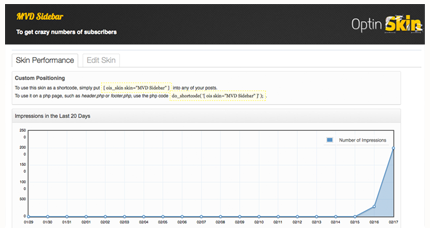
This is also a very important feature of this plugin. You can setup split tests, so you can discover where you should place your subscribe form to get most subscribers from your visitors.
I think that this plugin really have many great features. It is worth the money, because you can get more subscribers and therefore more customers. So I would recommend this plugin for everyone. Go to the Optinskin website here.
How to insert modules into articles in Joomla
Sometimes it may be very convenient to be able to insert a module into a Joomla article. This is useful if you want to insert e.g. advertising modules, polls, top lists etc. You can also easily customize any article, so it looks just like you want it.
The solution is the extension Modules Anywhere, which is a free extension you can download here. Modules Anywhere is an extension I always install on all my Joomla websites (See also my list with must-have Joomla extensions).
Install and using Modules Anywhere
Once you have downloaded the file, you go to Joomla Backend, choose Extensions and then Extension Manager. Then select the file you have downloaded and click Upload and Install.
Now Modules Anywhere should already be activated. No try to create a new article, by pressing Content – Article Manager – Add New Article. Now a new button with the text “Insert Module” has showed up. Press the button and then the module manager show up. Click on the module that you want to insert into your article. Then it adds this code to your article:
{module Breadcrumbs}
Where Breadcrumbs is the name of the module. In this example I want to insert the Breadcrumbs module into the article. When you view the article, the module has now been inserted:

Of course you can also insert the code manually, if you don’t like using the button.
Do I have to install an extension?
No, actually there is also an build-in plugin to insert modules to articles. It is called Load modules. You can insert modules using this plugin with the code:
{loadmodule Breadcrumbs}
So you don’t necessary have to install Modules Anywhere. But why then install this Extension:
- Because it adds a button that makes it very easy to insert modules.
- You can actually also insert modules into modules using Modules Anywhere.
And I think the best reason to use this extension, is because it adds a button.
How to make a round Google+ profile image
Maybe you have noticed that some of the profiles in your Google+ circles don’t have the regular square profile image, but instead a round photo. You can e.g. look at my profile image at my Google+ profile:

In this article I will explain how you can transform your regular Google+ image to the round image using the free photo edit software GIMP. But why should you make a round image instead of the regular square image? Because this is important if you have established authorship between your website and your Google+ profile. That is because a round image may stand out for the person searching on Google, compaired to the square Google+ images. That will be more eye catchy and may therefore lead to a higher click-through-rate (CTR).
Download GIMP
GIMP is an opensource, free photoeditor just like Photoshop – just for free. You can download it for free here. When you have downloaded it, install it and open GIMP.
Select a circle in your profile image
First you need your regular, square profile image that you want to edit. Then open the image in GIMP, by choosing File and Open. Also create an empty image with a white background, by choosing File and New.
Now you want to select a circle in your original, regular, square image by choosing the ellipse select tool.

Then select a circle in your original image and press Ctrl + C to copy the circle.

After this, insert the circle in the empty image by pressing Ctrl + V.

Then save the image as a JPEG image, by pressing File and Export to… (Ctrl + E). Then upload the photo to Google+ and see the result.
The circle image in your posts
The round profile image will show up like this in your posts:
The white background will blend completely into the white background color of Google+.
The circle image on your profile
On your profile your white background might look more distinct from the rest of your profile, but it looks OK.

The circle image in search results
If you have authorship established on your site, the circle image will look like this in the search results:

This looks more professional than the regular, square image and is more eye-catchy. The white background of the circle image matches the white background of Google’s search result page perfectly.
This profile image does not affect your author rank, but making more attractable content and images does affect the CTR of your search results. How big the effect of using the round image, instead of the square, I don’t know. But if you like the round image better than the square and want your profile to stand out from the others, then I recommend you to use it.
You are welcome to follow me on my Google+ profile. Here I will share all the webmaster related articles I made and also others webmaster related articles.
Schedule your Google+ posts using Do Share
Do Share is a Google Chrome App that allows you to schedule your Google+ posts. It works both for sharing on personal Google+ profiles, pages and communities. And you can work with it offline.
Once you have installed the app, an orange circle with a number in will appear to the right of the address bar in Google Chrome. When you click on this button, Do Share will appear. In the image below you can see how you can add a scheduled post.

You can write a message, add a photo or a link and even a poll for Google+. You can click on the photo and then switch between writing for your personal profile or your Google+ pages. If you click on Add more people, you can choose which people the post should be visible for. That can be circles, single persons, communities etc.
If you haven’t finished the post completely you can save it as draft, by clicking on Send to draft. Later you can easily find the draft again, because it is listed under the title Draft. If you later regret the post and want to delete it, you can click Delete post.
At last you can choose either to share the post immediately or schedule the sharing of the post. If you wish to schedule the post, you can choose both the date and time, where you wish to share post.
However, there is one big disadvantage. Once you have scheduled the post, the post will only be shared, if your computer is On, Google Chrome is opened and you are logged into Google+. It would be nice if the post was saved some place online, where a server automatically shared the post on time.

So beside this disadvantage, the app is very great and works very fine. This could be a great tool for someone, who always has his computer and chrome running and who is always logged in.
You can also wath this video of how you use it:
[embedplusvideo height=”393″ width=”650″ standard=”http://www.youtube.com/v/awiwkBrxRh0?fs=1″ vars=”ytid=awiwkBrxRh0&width=650&height=393&start=&stop=&rs=w&hd=0&autoplay=0&react=1&chapters=&notes=” id=”ep6596″ /]
Install Do Share on Google Chrome here.